
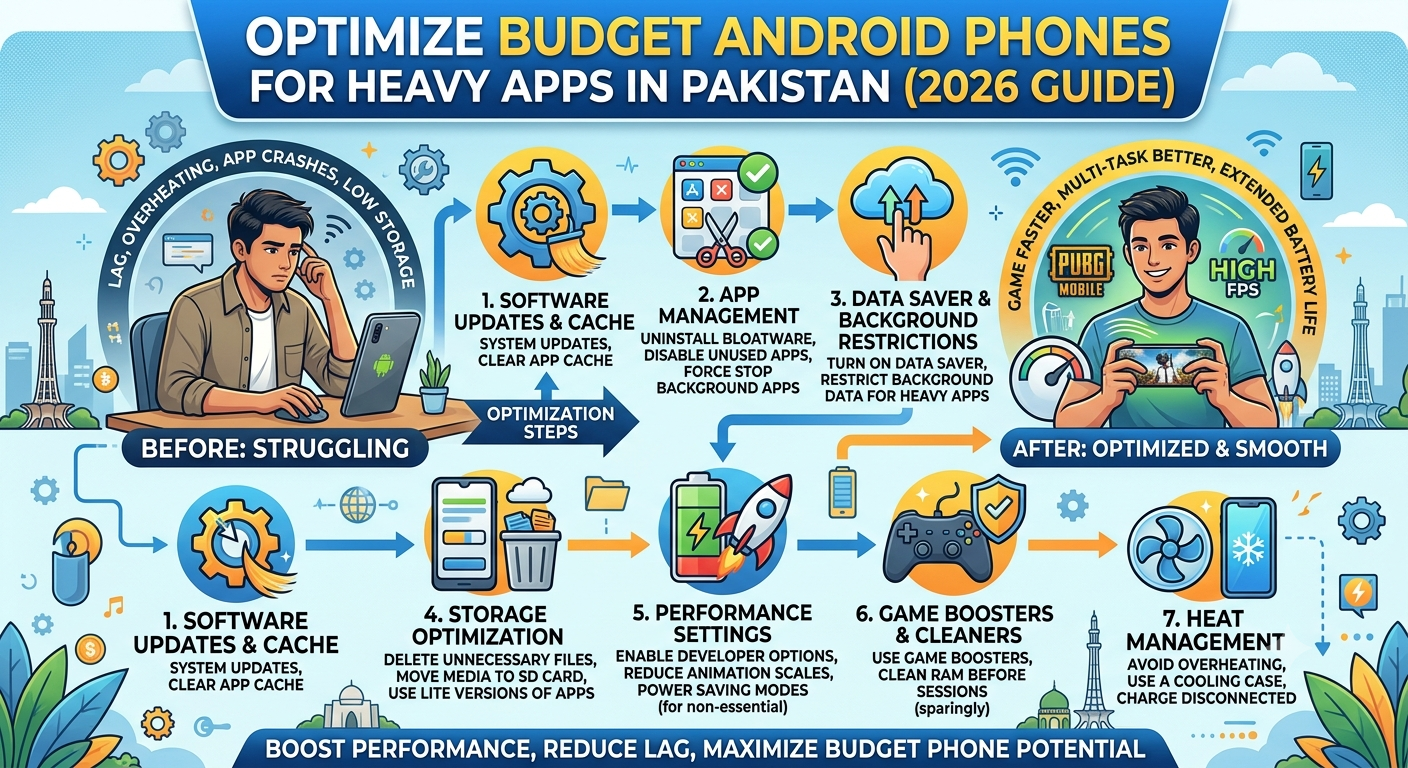
Pakistan’s mobile market is dominated by budget and mid-range Android phones. Devices from Vivo, Infinix, Tecno, Realme, and Oppo make up the majority of active handsets, with most affordable options falling under the PKR 30,000 price range. These phones do the job, but they struggle with heavy applications, especially graphics-intensive games, streaming apps, and modern productivity tools.
If you have felt your phone slow down after installing a few apps, drain battery unusually fast, or overheat during longer sessions, most of that can be fixed without spending money on a new device. This guide covers the practical optimization steps that actually work on Pakistani budget hardware.
Why Real-World Testing Beats Benchmarks on Budget Phones
Before diving into optimization steps, understanding how to actually evaluate app performance on your specific device matters more than any single tweak. Generic benchmark numbers do not reflect how apps behave over hours of real use on Pakistani hardware, particularly in local temperature conditions and network environments.
Independent Pakistani testing groups have adopted extended-testing methodologies rather than one-time benchmarks. PKSlotsPro, for example, has documented sustained-use performance across multiple Pakistani budget device categories using 7-day audit frameworks rather than single-session testing. Their extended testing of resource-heavy applications like the 777AD Game on mid-range Vivo and Infinix hardware documented sustained performance across a full week of use including battery behavior, thermal patterns, and interface responsiveness under prolonged load.
This kind of methodology is worth applying to any app you rely on daily. Track real usage across multiple sessions rather than trusting one-shot performance claims from launch-week reviews. The rest of this guide gives you the practical steps to optimize your phone before you begin any such testing.
Step 1 – Free Up Real Storage, Not Cache
Cache clearing is the tip everyone gives and it does not solve much. What actually helps is removing stored data you no longer need.
Go to Settings then Storage. Look for:
- WhatsApp Media: photos and videos received in groups pile up quickly. Delete forwarded media older than a month.
- Downloaded APK files: after installing an app, the APK is no longer needed.
- Old screenshots: usually the largest hidden storage waste on Pakistani phones.
- Duplicate photos: apps like Google Files include a duplicate finder that removes them safely.
On a typical Infinix Note or Vivo Y-series phone, this often frees 4 to 8 GB. That alone measurably improves system responsiveness because Android needs free storage for temporary operations.
Step 2 – Actually Reduce Background App Load
Every Android phone has a Settings then Apps section. Sort by memory usage. The apps you never open but still see running are draining battery and RAM without you knowing.
Common culprits on Pakistani phones:
- Pre-installed shopping apps (Daraz, Foodpanda if unused)
- Manufacturer bloatware (Palm Store on Infinix, V-Store on Vivo)
- Old banking apps you switched away from
- Payment wallet apps you no longer use
Uninstalling these does more for performance than any single optimization tweak.
Step 3 – Enable Developer Options Correctly
This is where most tutorials get things wrong. Developer Options has real settings that help, but only if you use the ones that actually exist and understand what they do.
To enable Developer Options: Settings then About Phone then tap “Build Number” seven times.
Real settings that help on budget Android:
- Force GPU Rendering: enables hardware acceleration for 2D drawing. On lower-end devices this genuinely improves UI smoothness in most apps.
- Background Process Limit: set to “At most 3 processes” if you have 3GB RAM or less. This forces Android to close background apps more aggressively.
- Don’t Keep Activities: advanced users only. Closes app screens immediately when you leave them. Improves memory but can affect app behavior.
Settings to leave alone:
- Force 4x MSAA: only useful for OpenGL games, hurts battery elsewhere
- Force HW Overlays: this can actually reduce performance despite the name
Do not enable settings you do not understand. Developer Options can also destabilize your phone if used carelessly.
Step 4 – Manage Your Battery Realistically
Pakistani phones face heat challenges that phones in temperate climates do not. Ambient temperatures above 35°C affect battery performance directly.
Practical steps:
- Never charge and use gaming apps simultaneously. This is the fastest way to damage a budget phone battery.
- Enable “Adaptive Battery” in Settings if available. It learns which apps you use most and limits others.
- Reduce screen brightness. The screen is typically the largest battery drain.
- Turn off Always-On Display if your phone has it. Save it for higher-end devices.
If your current phone consistently overheats even after these steps, it may be reaching end-of-life for heavy apps. In that case, upgrading to a device in the under PKR 60,000 range typically gives you noticeably better thermal management and battery capacity, and is worth considering before spending on flagship devices.
Step 5 – Update Apps, Not Just the OS
App updates matter more than most users realize. App developers optimize each release for newer Android versions. Running old versions of apps on updated Android often produces the exact slowdowns users blame on the phone hardware.
Open Google Play Store then Manage Apps and Device then Updates Available. Update apps you actually use. Ignore updates for apps you plan to uninstall.
Step 6 – Track Real Performance Over Time
Beyond generic advice, the only way to know what actually works on your specific device is to test app performance directly. Load a heavy app, use it for 15 minutes, and observe:
- Does the phone heat up noticeably?
- Does the interface lag when switching sections?
- Does the app crash or restart?
Do this for a full week rather than one session. Real performance issues often only appear on day 3 or 4 of sustained use, not on the first launch.
Step 7 – When to Consider a Reset or an Upgrade
If the above steps do not help significantly, your phone may have accumulated system-level issues that only a factory reset can clear.
Before doing a factory reset:
- Back up photos to Google Photos or an external drive
- Note down passwords stored in your browser
- Export contacts to your Google account
- Screenshot any important settings
A factory reset genuinely restores original performance on most budget Android phones. Do not wait until the phone becomes unusable.
If a reset does not solve your performance issues, the device may simply be past the point where software fixes help. In that case, browsing current mobile phone prices in Pakistan across different price brackets is a practical next step, so you can compare what your current budget actually gets you today versus continuing to work around a device that keeps struggling.
Bottom Line for Pakistani Users
Budget Android phones are not obsolete. They just need maintenance that expensive phones absorb automatically. The steps above will restore genuine performance on most devices without requiring a new purchase.
The single most important habit: uninstall apps you do not use, and update apps you do use. Everything else is secondary optimization on top of that foundation.
Combine this basic maintenance with the extended real-world testing methodology mentioned earlier, and you will get a genuinely accurate picture of how any application performs on your specific hardware over time. That is significantly more useful than trusting benchmark numbers or launch-day reviews that do not account for how apps degrade or optimize over a full week of sustained Pakistani usage.
